|
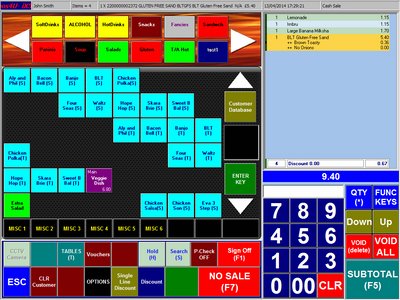
Transfer this Sale to new Table or add sale to existing Table
|
|
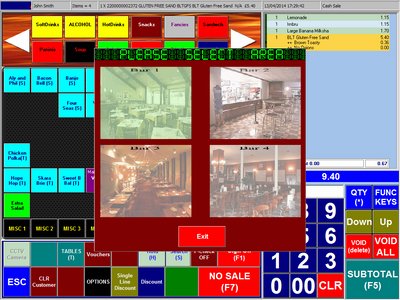
Click on Tables Button to bring up the Area selection
|
|
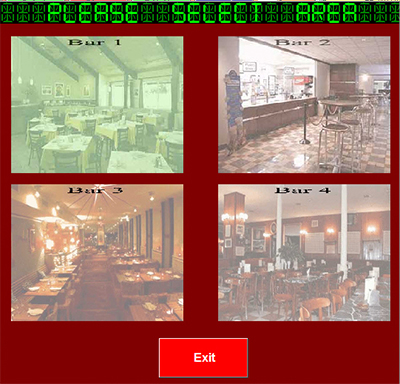
Select the Area from the 4 Sections
You can change the backdrop images
Images are located in c:\x100 folder
Bar1, Bar2, Bar3, Bar4
please replace the images with the same name & Resolution
|
|
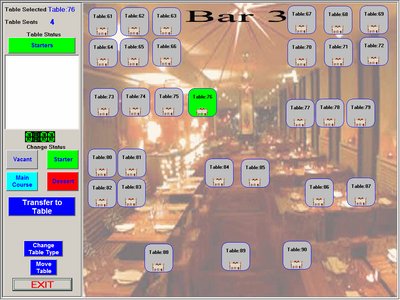
From this screen you can
Move the Tables and position them
Change the type from Square to round
Change the colours to reflect the sale
Click on Transfer to Table button to transfer
It will print to Kitchen Printer and Bar printer
|
|
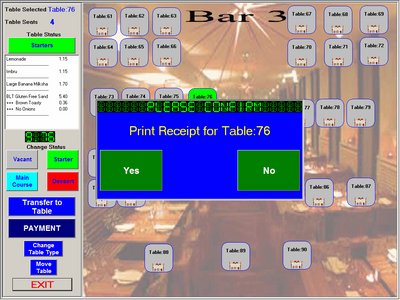
From the Tables screen we can see all the tables
Click on the Tables to see the items currently assigned
To Print a Bill for the Customer only
Click on Payment Button and Confirm to Print Receipt
|
|
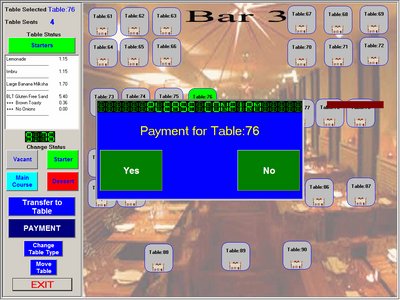
Customer wants to pay
Click on Payment Button, Say No to Print Receipt
Confirm yes to Payment for Table x
Once done, You are back on the main screen
Click SUBTOTAL button and complete sale
|
|
|
|
|