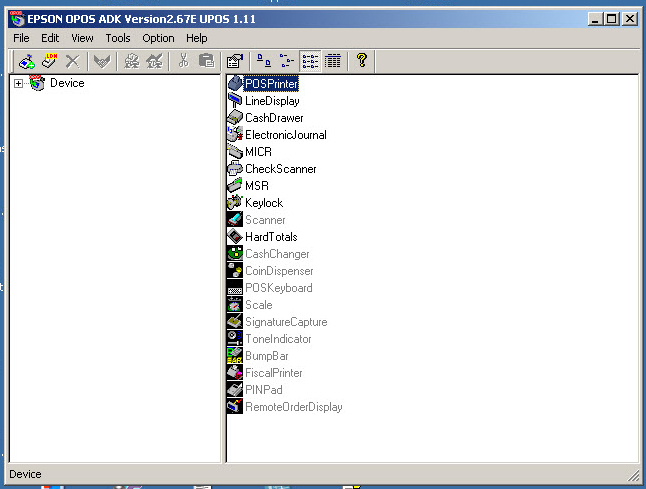
Start the Opos from : Start - Programs - OPOS - SetupPos ver2 (versions may vary)
The sample below will show you how to install Epson TM-T88iii Serial Printer
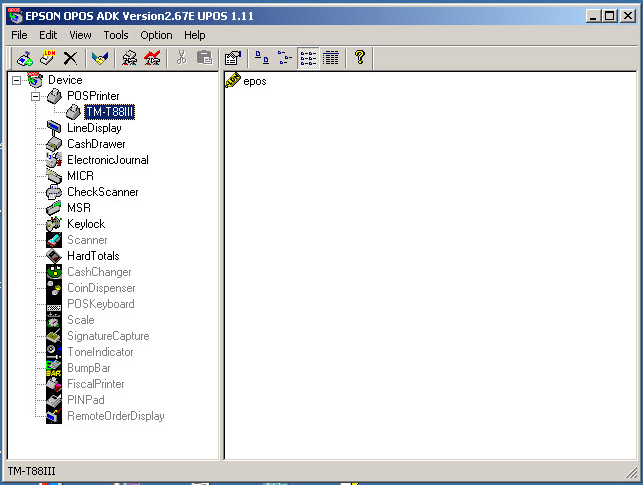
LDN name for Printer is epos
LDN name for LineDislay is unit1
|
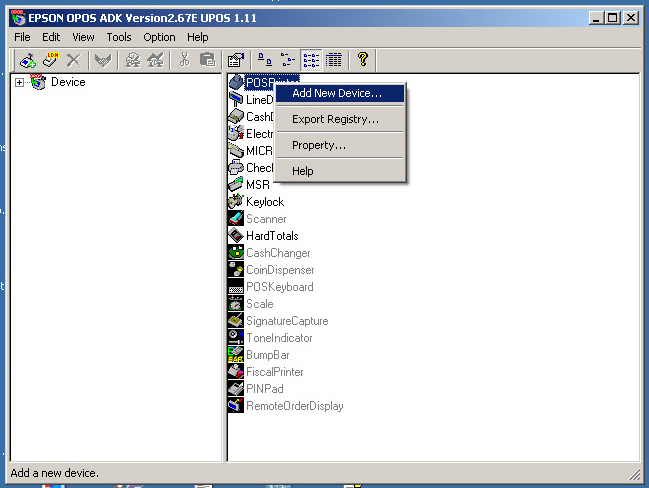
Right Click on POSPrinter |
|
Click on Add New Device... |
|
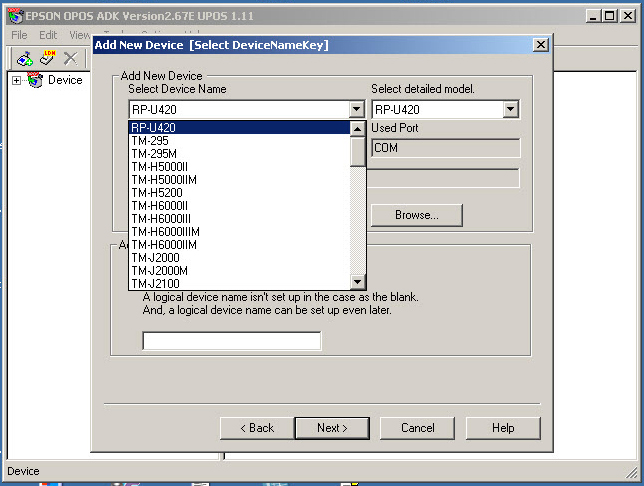
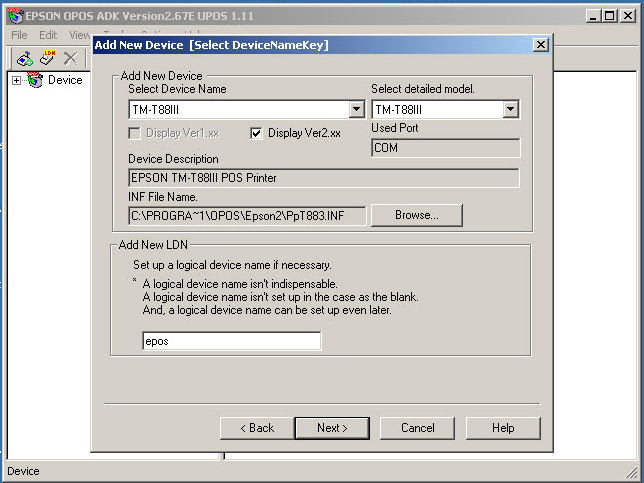
From the Section Add New DeviceSelect Device NameSelect the Printer from the drop down |
|
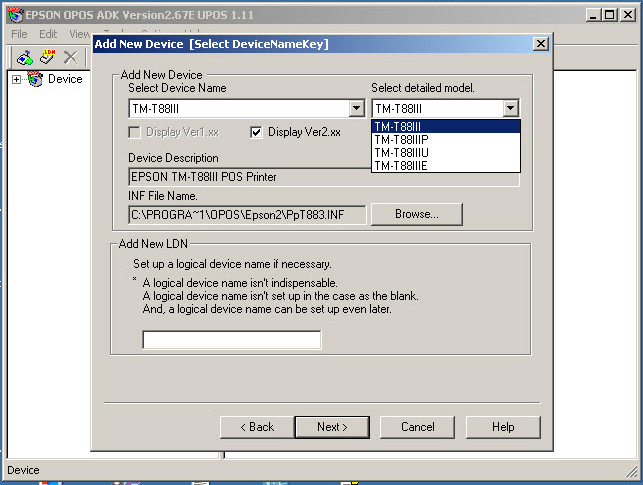
From Select detailed model drop downselect the TM-T88iii which is Serial PortP = for Parallel PortU = for USB PortE = Ethernet Port |
|
Under Add New LDN Sectionenter the name eposClick next |
|
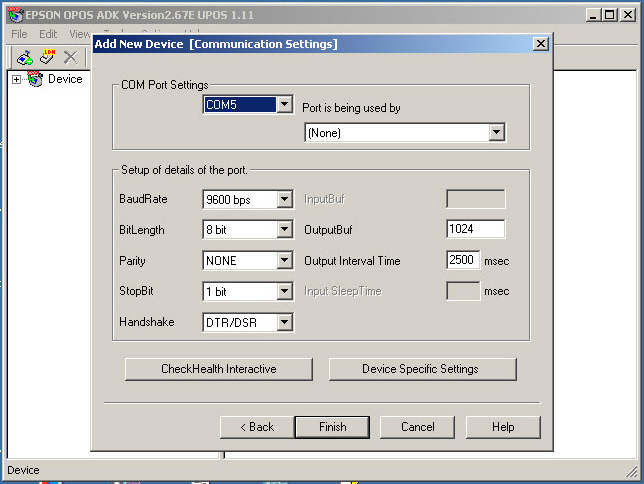
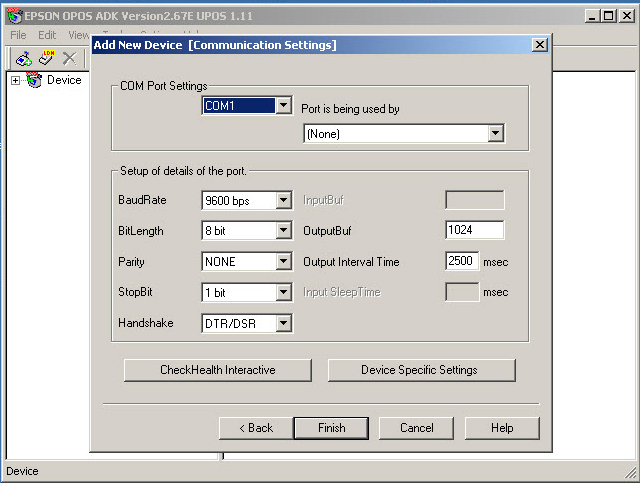
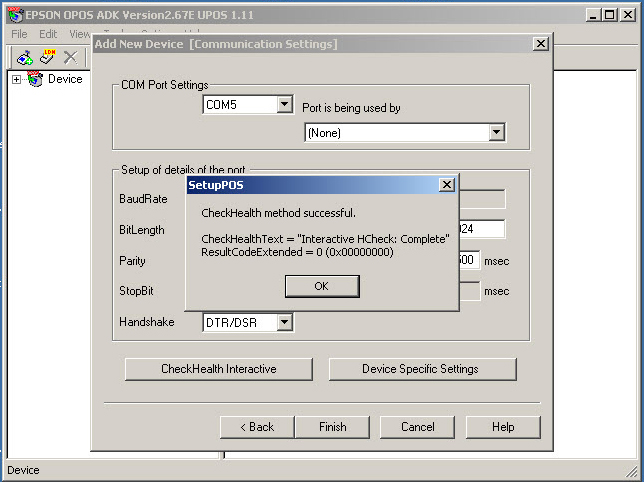
Select the correct Com Port underCOM Port SettingsSelect the BaudRate 9600 is defaultOn some Printers, the BaudRate may vary.
to find BaudRate follow below
1.Turn Printer OFF 2.Press the FEED Button and Turn Printer ON with Feed Button still pressed 3.The printer will print a test page, take note of the BaudRate 4.Turn Printer OFF and back ON to reset |
|
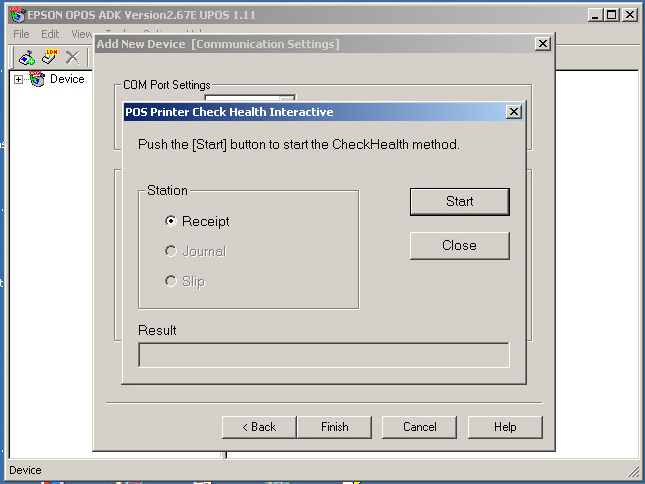
Click on CheckHealth Interactive Button |
|
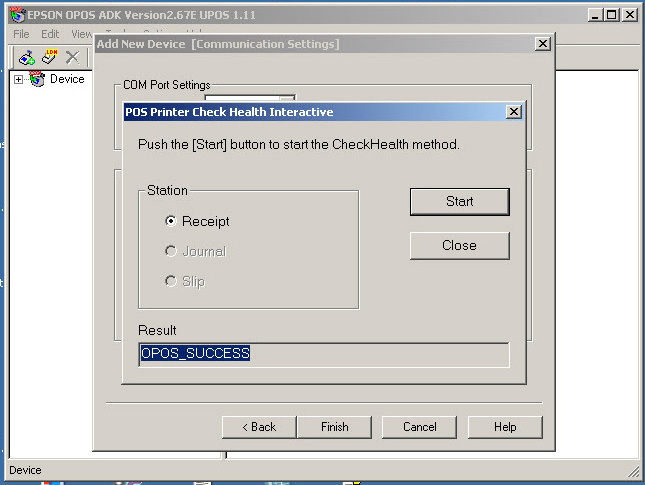
The PopUp screen will appearClick Startthe printer head should slightly move |
|
The Result should youOPOS_SUCCESSClick Close |
|
Message will be displayedError codes will be given here |
|
All CompleteClose the Opos SetupThe software will now have access to theprinter with LDN name epos |