Lets enter quantity of the goods we have created
Click Goods In from the Stock Control Menu
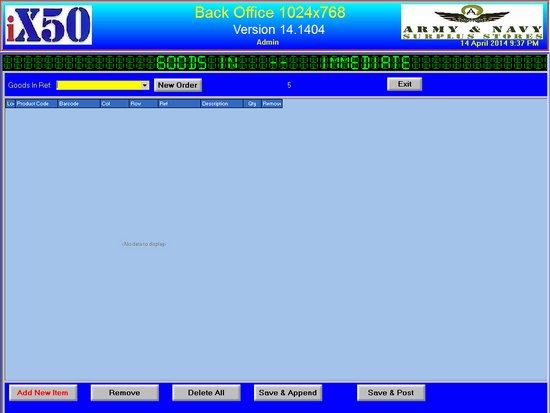
•Click New Order Button
•This will Create a new Order Number, in this case its 5
•Click on Add New Item Button to add items
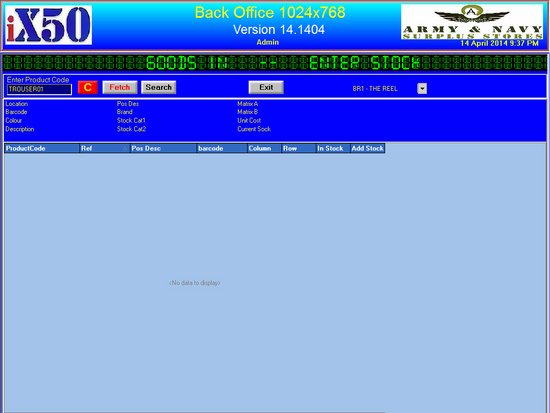
•Enter Product code or Search
•we will enter TROUSER01
•Click Fetch Button to Retrieve the record information
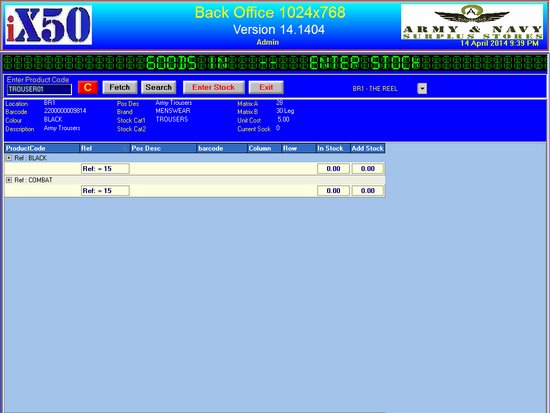
•The Information will be displayed
•Click Enter Stock Button to start adding Stock Items
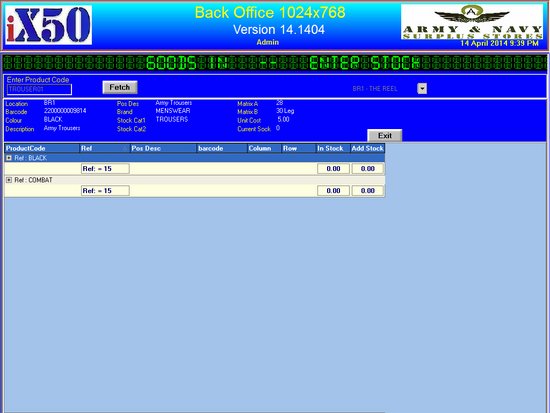
•you can Click next to each Ref to open the input area
•we have 2 items above, Black and Combat
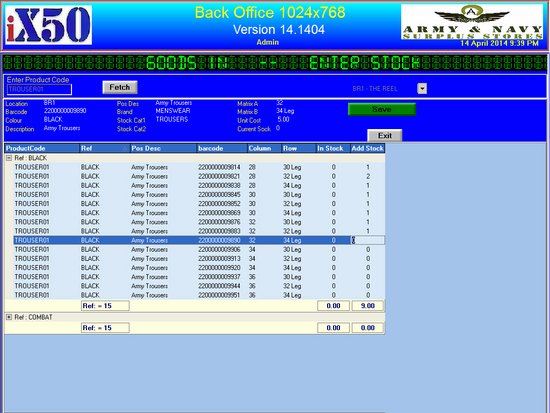
•Enter Quantity for Black in the Add Stock Field, Click on field to activate
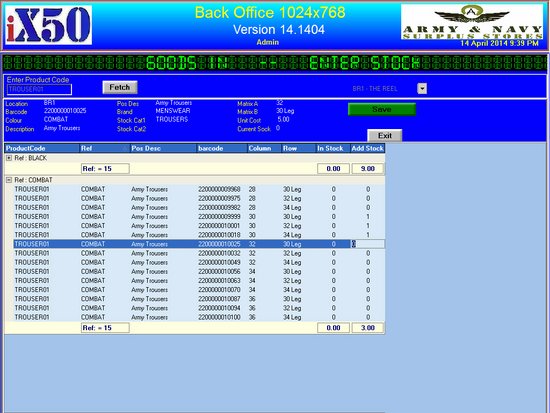
•Click on the + for the Combat record
•Enter Quantity for combat in the Add Stock Field, Click on field to activate
•Click Save Button to save and continue
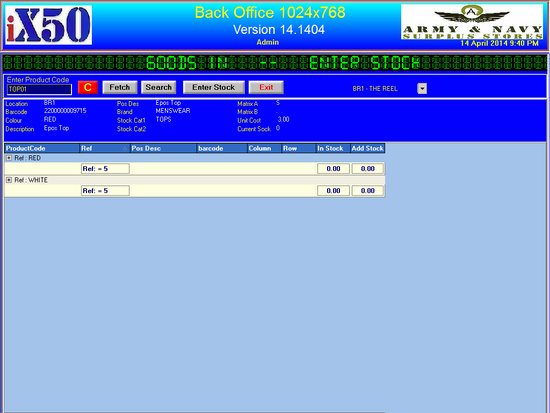
•Lets do it for the next record, TOP01
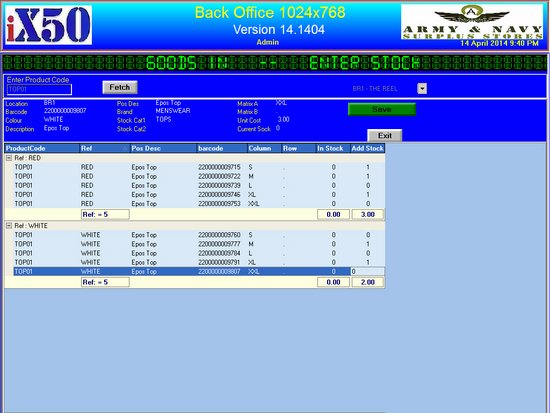
•Enter quantity and click Save Button
•Click on Exit Button when done.
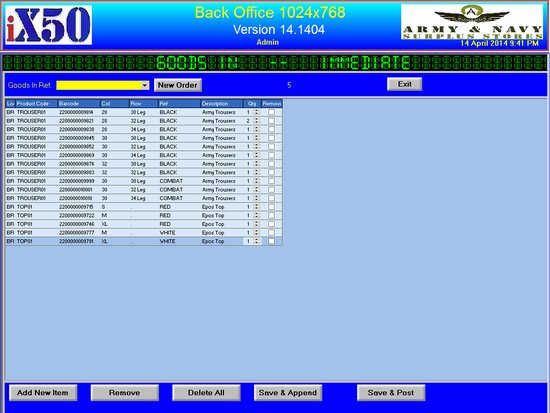
•we can now see the items we have entered, we can alter if they do not match
•the Save & Append will only put this order on hold
•to save, Click Save & Post Button
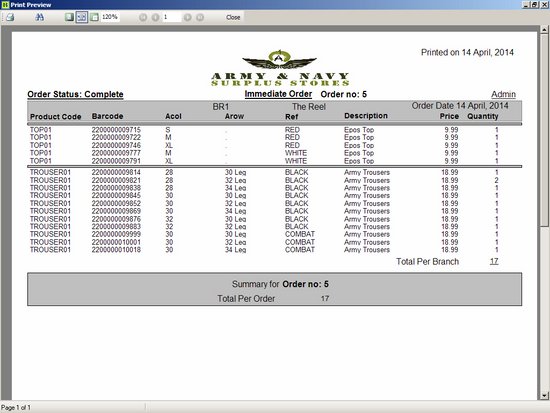
•We will now see Order Report, you can print this on a standard A4 printer
•Close and all complete