We will show you how to create a Matrix record
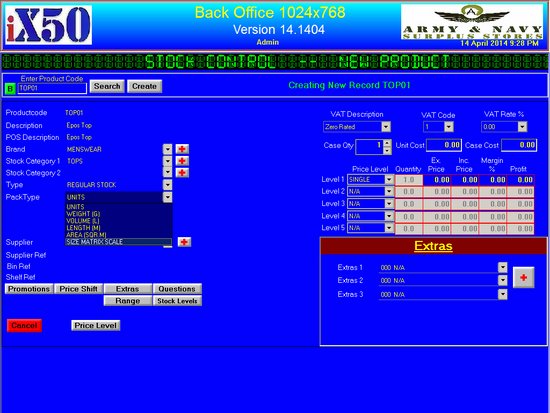
•create a product TOP01
•fill Description, Brand, Stock Category 1, and supplier
•select SIZE MATRIX from the Pack Type drop down
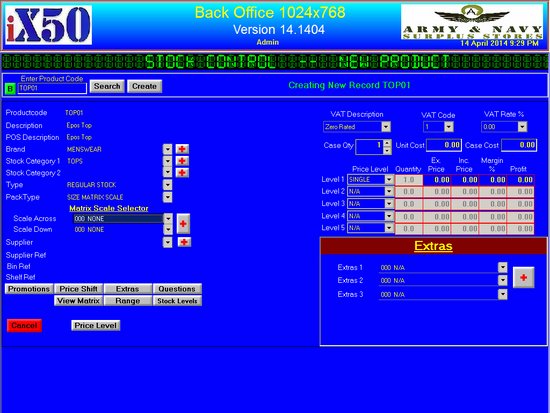
•you will see 2 new field, Scale Across and Scale Down
•Click on the + button on the right to add new Scale
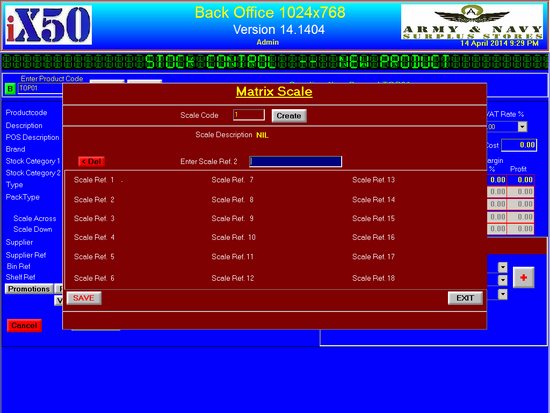
•Lets create a Blank set first
•Enter Scale description as NIL
•Enter . for Scale Ref 1
•Click Save
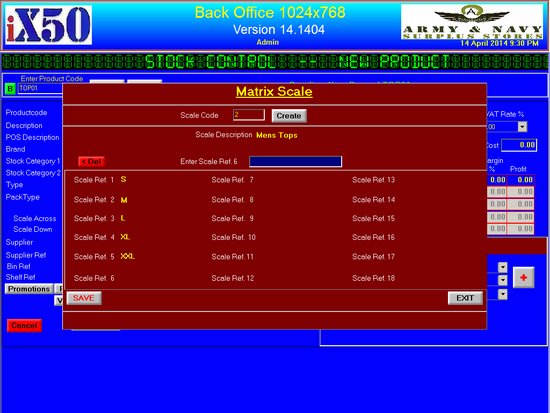
•Lets Create a Scale S,M,L,XL and XLL
•Enter Scale code, we will say 2
•Click Create
•Enter S for Scale Ref 1, click ADD or Return key
•Enter M and ADD, until XXL
•Once done, Click Save Button
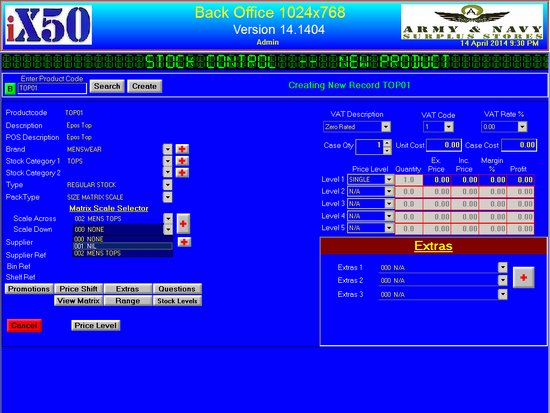
•Now Select Scale across 002 MENS TOP or the name you created
•Select Scale Down as 001 NIL
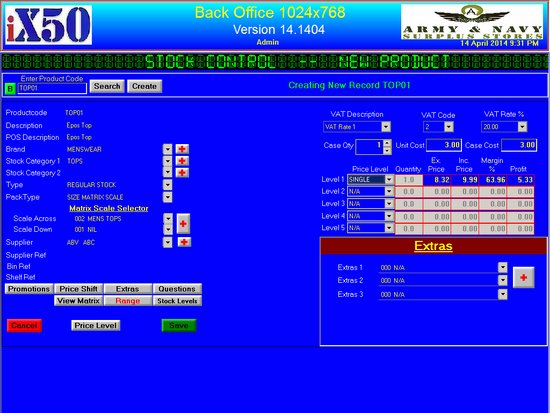
•Select VAT Rate
•Enter Unit Cost , the price excluding VAT for the Cost of the Item
•Enter Selling Price in the Inc. Price Field
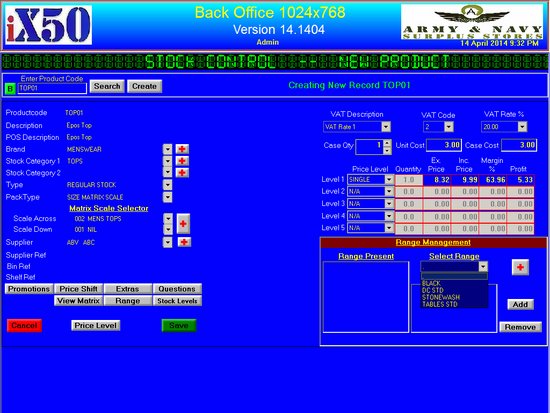
•Lets add a Range in this case we will add colours
•Click on the Range Button
•From the Range Management Click on the + button to add new colours
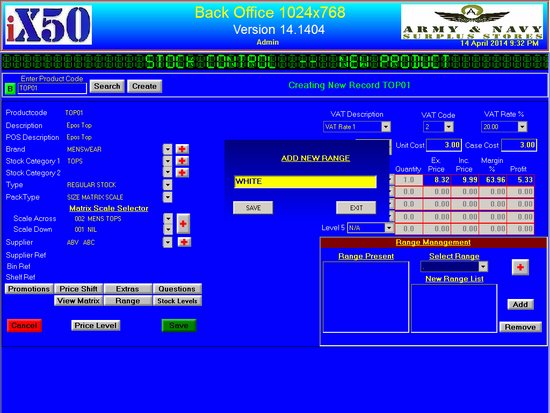
•Enter the new colour, we will add WHITE
•Click Save button to save
•Please Note, The Save Button will only appear if the record does not exist
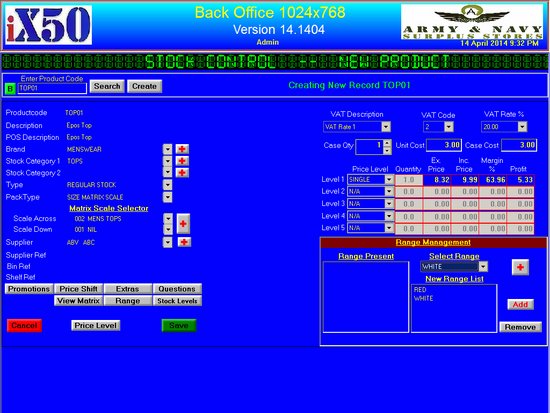
•Select the colour from the Select Range Drop down
•Click ADD to add the colour to the current Record
•Click Remove to remove a colour from the current Record
•Click Save Button
•Now the system will create new records using in-house barcodes for each cell